ERASEBG GUIDES
Fix processing and download problems
Work through the symptom you see, one step at a time.
Updated 1 October 2026 · EraseBG guides
The image will not open
Check that the file is JPG, PNG, or WebP and no larger than 10 MB. Renaming a file extension does not convert its format. If the file comes from a phone in another format, export it as a supported format first. Try one image at a time. A small, ordinary JPG can help you tell whether the issue is specific to your source.
The first run seems slow
EraseBG downloads a background-removal model before processing. That first download needs a connection even though your photo is processed locally. Keep the editor tab open. Later runs may reuse cached model files; private browsing or clearing browser data can require downloading them again. Processing speed also depends on your device and the image.
If the page reports that it could not create the cutout, check your connection and retry a smaller source. Browser extensions, network filters, or blocked external resources can stop model loading. Try a current browser and another network if needed. Do not repeatedly clear site data while troubleshooting a first-run download, because doing so may discard the cached files you already downloaded.
The original is visible but there is no finished cutout
The editor first displays your original while removal runs. Wait for “Cutout ready” before treating the preview as the output. If processing fails, the site disables export for that run and shows an error. Opening an image successfully does not establish that background removal finished successfully.
There are background patches or missing details
That is a result-quality problem rather than a download problem. Compare the original with the result. Fur, hair, blur, pale outlines, and transparent materials are difficult cases. Use a sharper original with clearer subject/background separation. The current editor has background controls, comparison, and undo/redo, but no manual mask brush.

The downloaded background is white
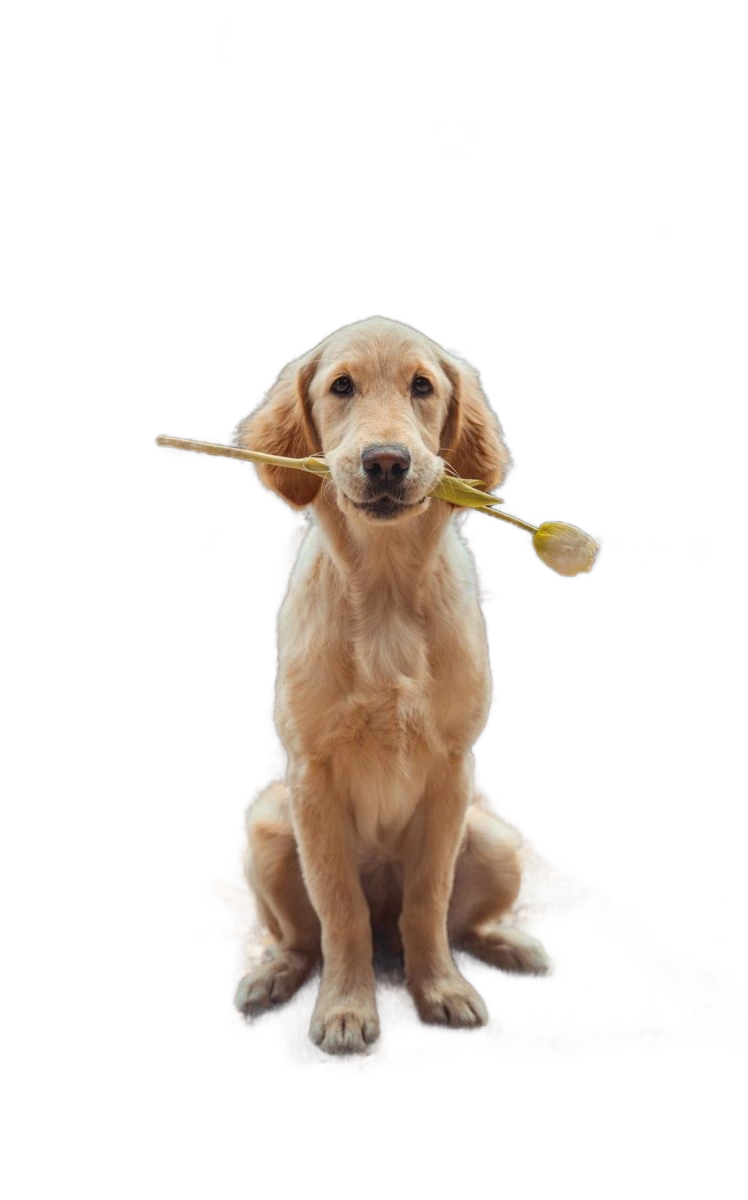
Check the chosen format. JPG cannot contain transparency, so a transparent editor canvas is exported with white behind it when JPG is selected. Choose Transparent and download PNG if you need a reusable cutout. Some viewers show a transparent PNG on white; test it over a coloured canvas before assuming the file is opaque.
The download does not appear
Check your browser’s downloads list, its configured download folder, and any blocked-download notice. Keep the editor open until the file is prepared. If you changed the background, inspect the exported file to confirm the selected finish. The file is saved through your browser; EraseBG does not maintain a cloud library of your downloaded images.
An upload from a tool page did not reach the editor
Tool pages use temporary browser storage to transfer the selected image into the main editor. Stay in the same browser and site session. If the transfer fails, try uploading directly from the homepage. Clearing site data removes local stored data, including a pending transfer and possibly cached model files.
Ask for help with a specific symptom
Email support@erasebg.online with the page URL, browser, device, file format, approximate size, and the exact error wording. Say whether the photo opened, removal finished, and download started. You can describe the problem without sending the original photo. The Privacy Policy explains storage and external delivery requests.