
 OriginalRemoved
‹ ›
BACKGROUND REMOVER
Remove backgrounds with a clean, studio-quality finish.
FAST. PRECISE. YOURS.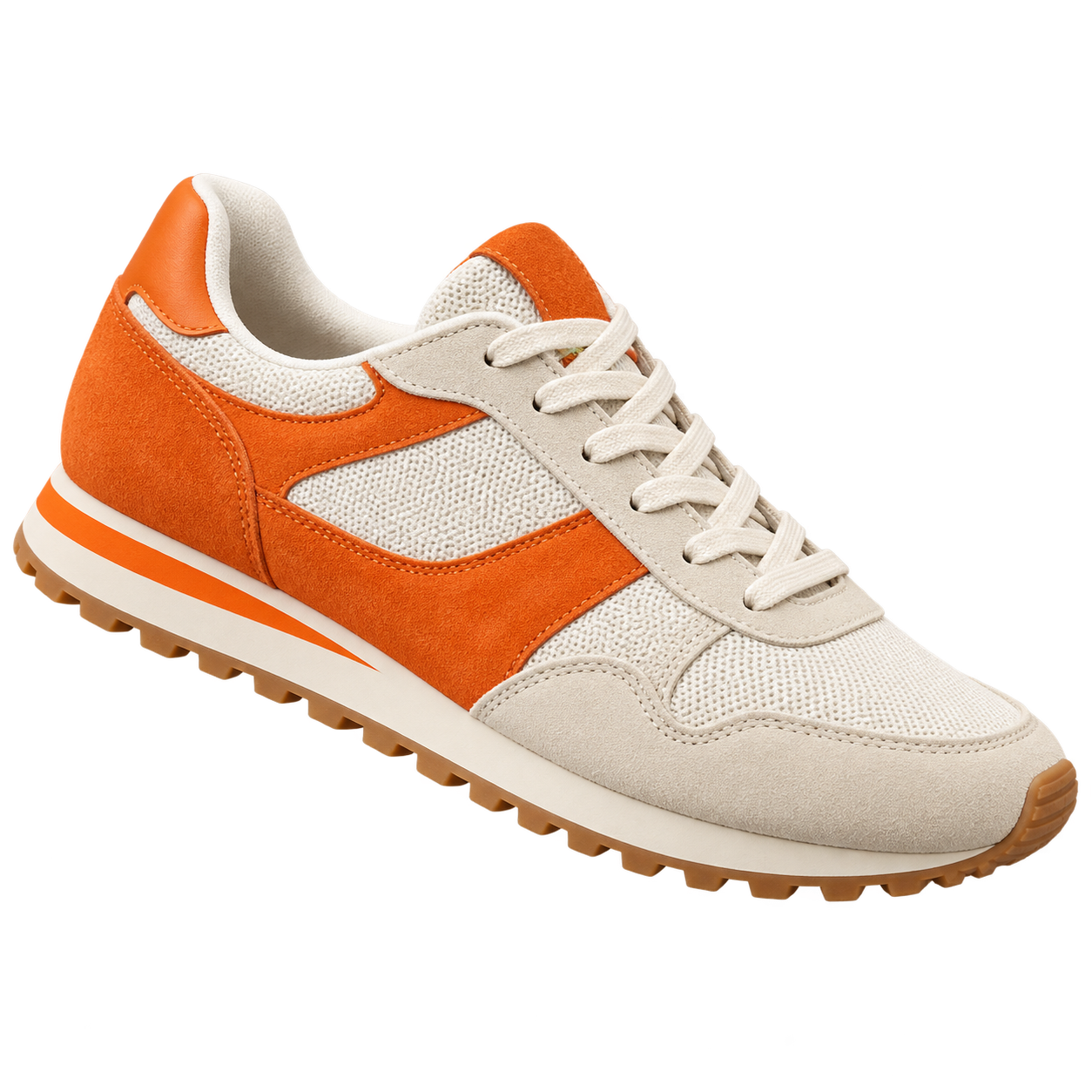 BEFOREAFTER
Or choose one from your device.
PNG, JPG OR WEBP · MAX 10 MB
PRIVATE LOCAL PREVIEW · FILES NEVER LEAVE THIS BROWSER
Interactive preview. Upload an image to remove its background locally, or explore the editor with the sample.
DESIGN 03A FRESH START FOR EVERY IMAGE
Three comparisons at a time.
Drag a card or browse the next
set.
OriginalRemoved

 OriginalRemoved
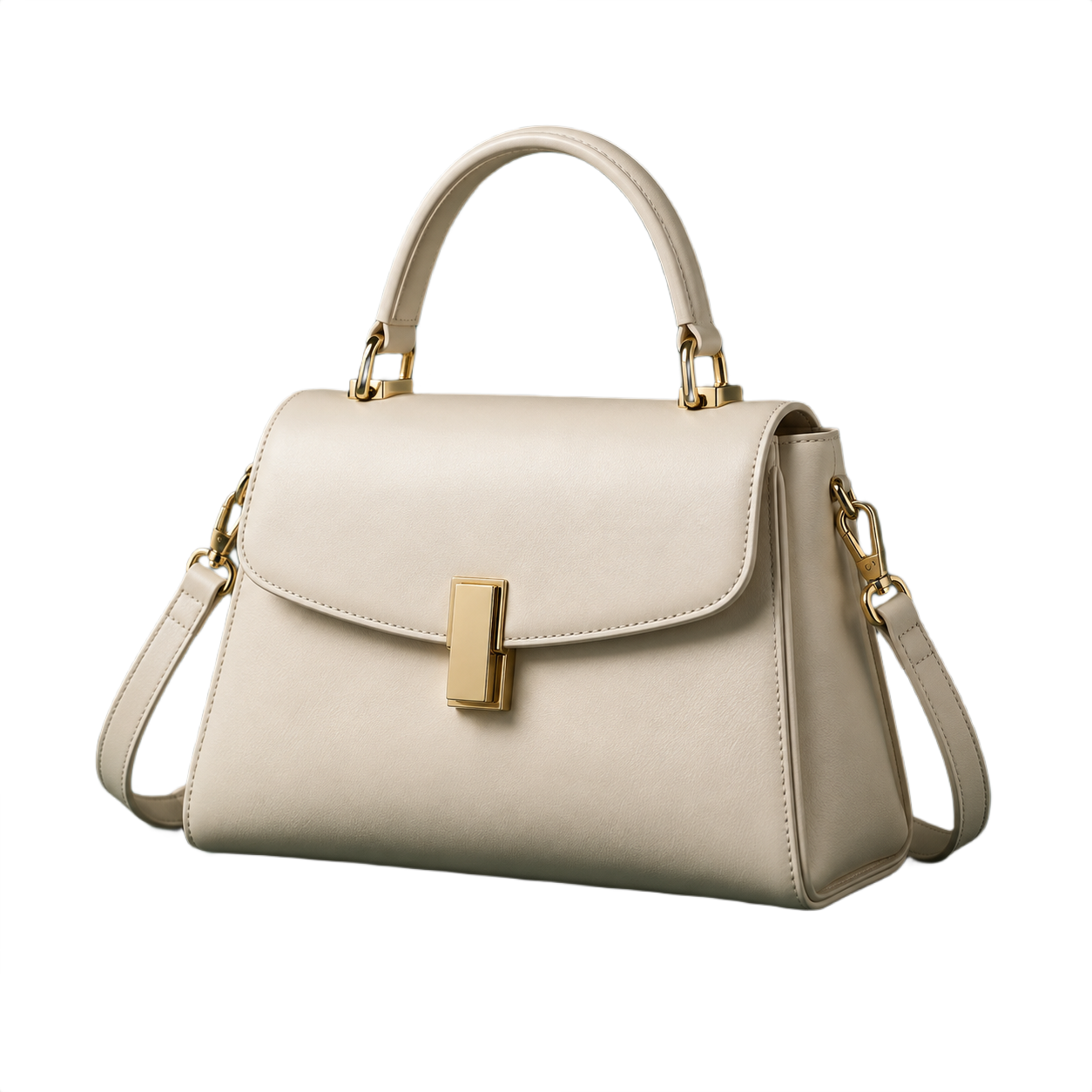
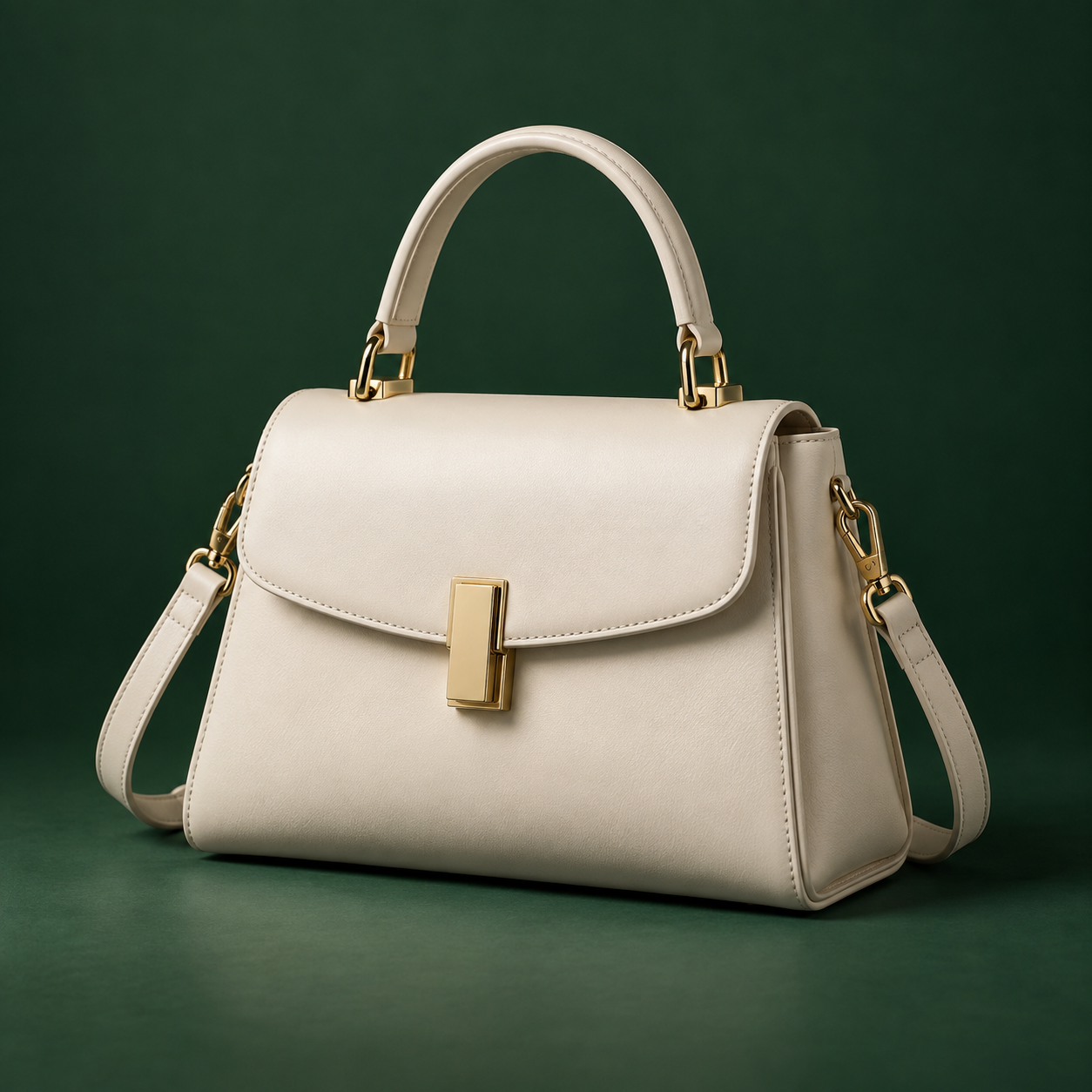 OriginalRemoved
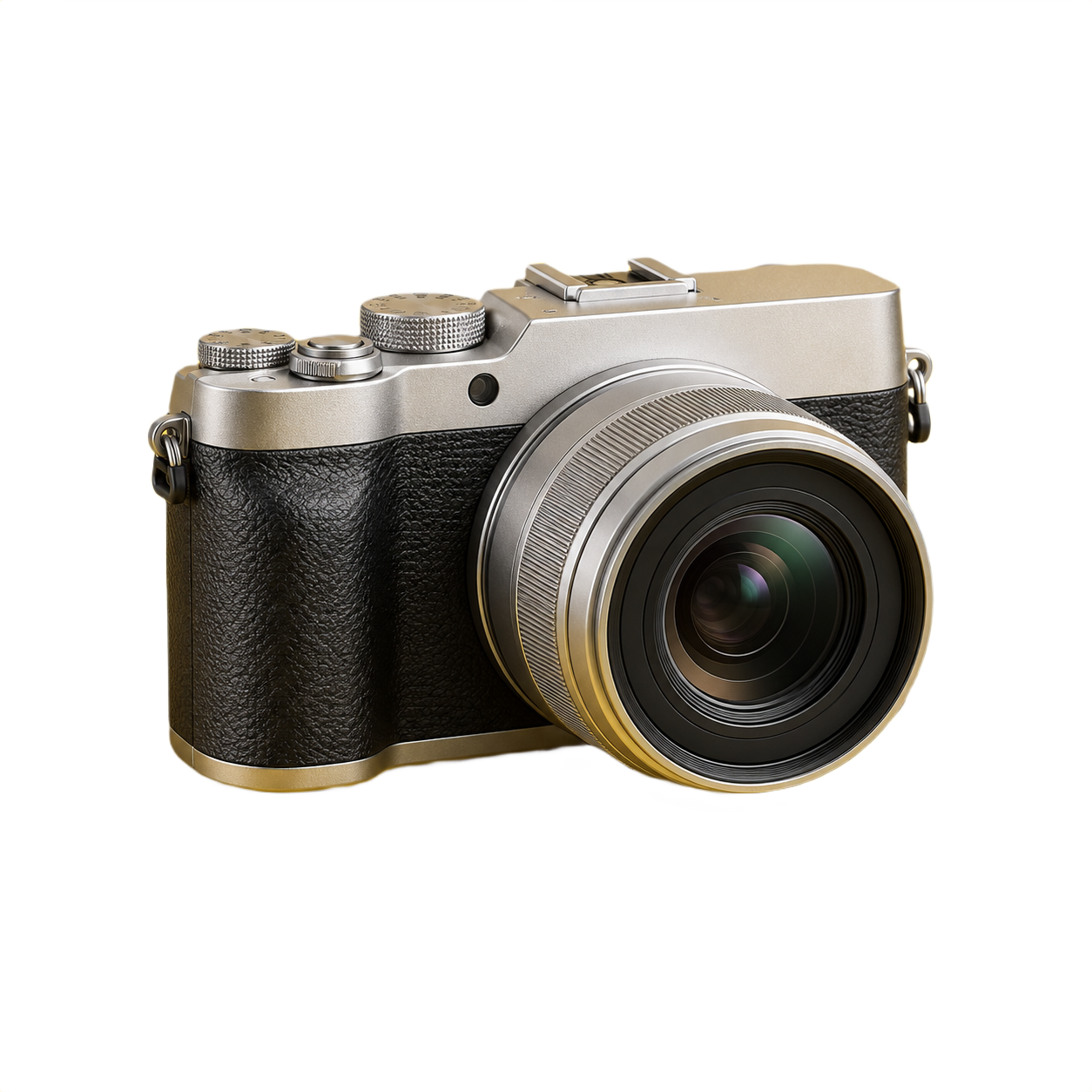
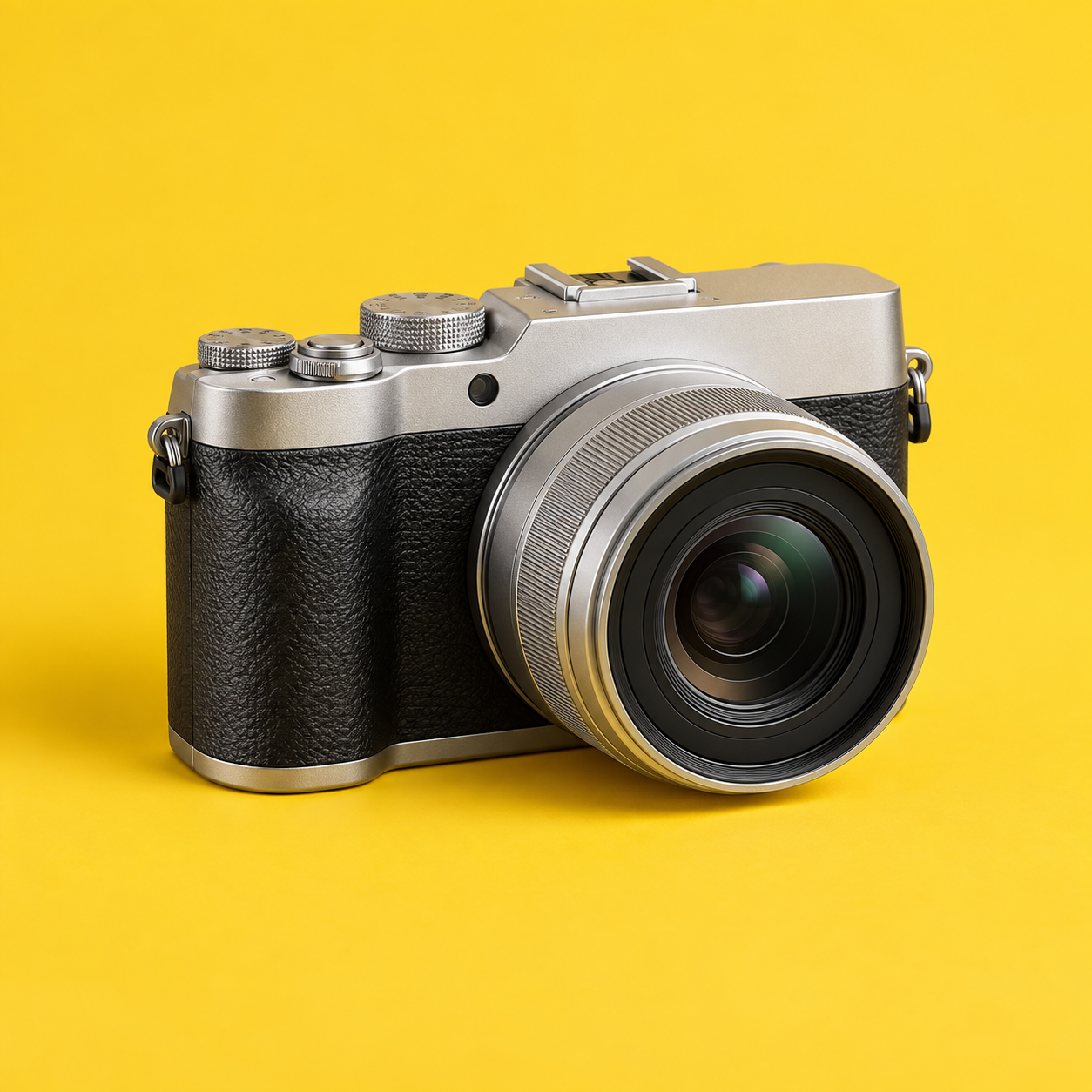 OriginalRemoved
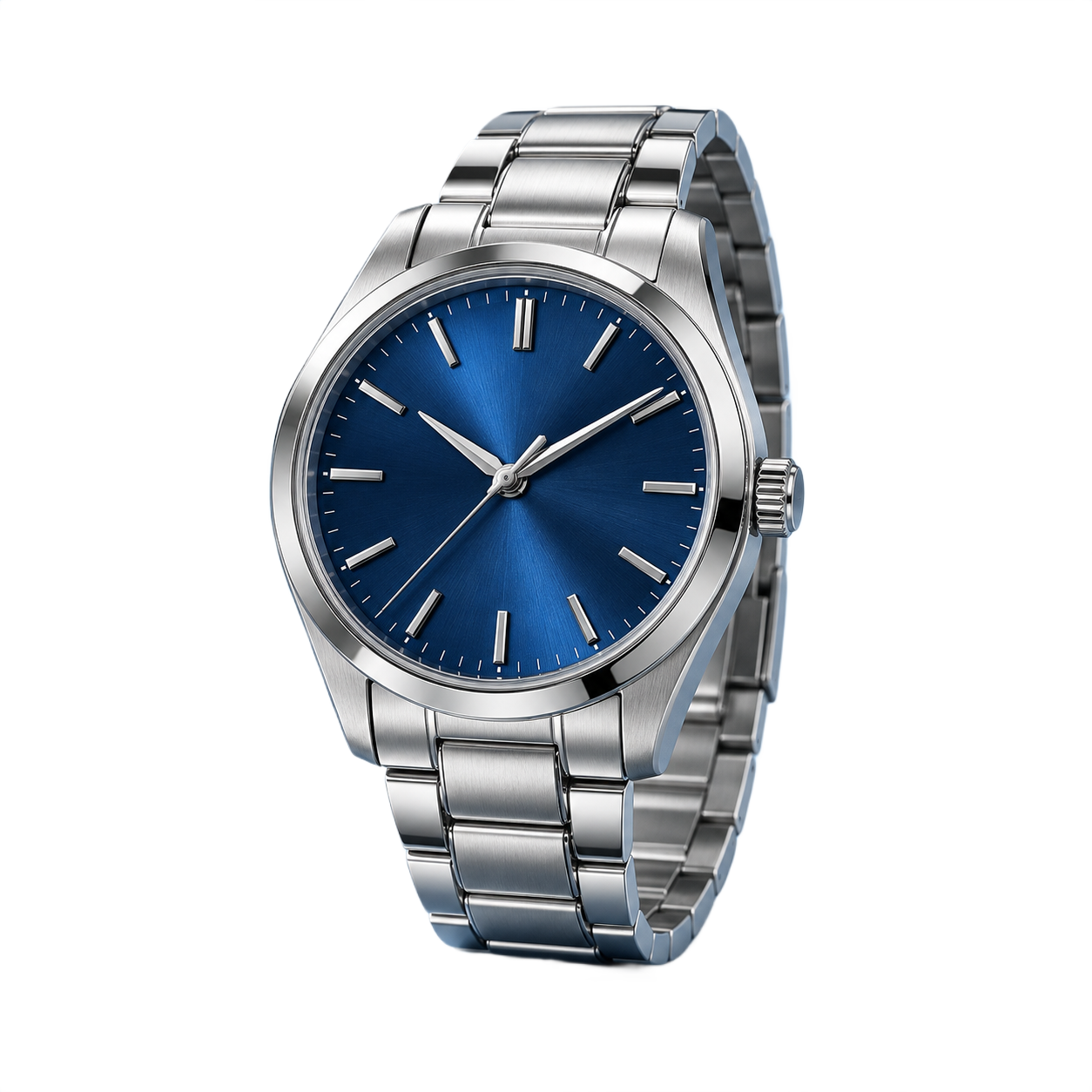
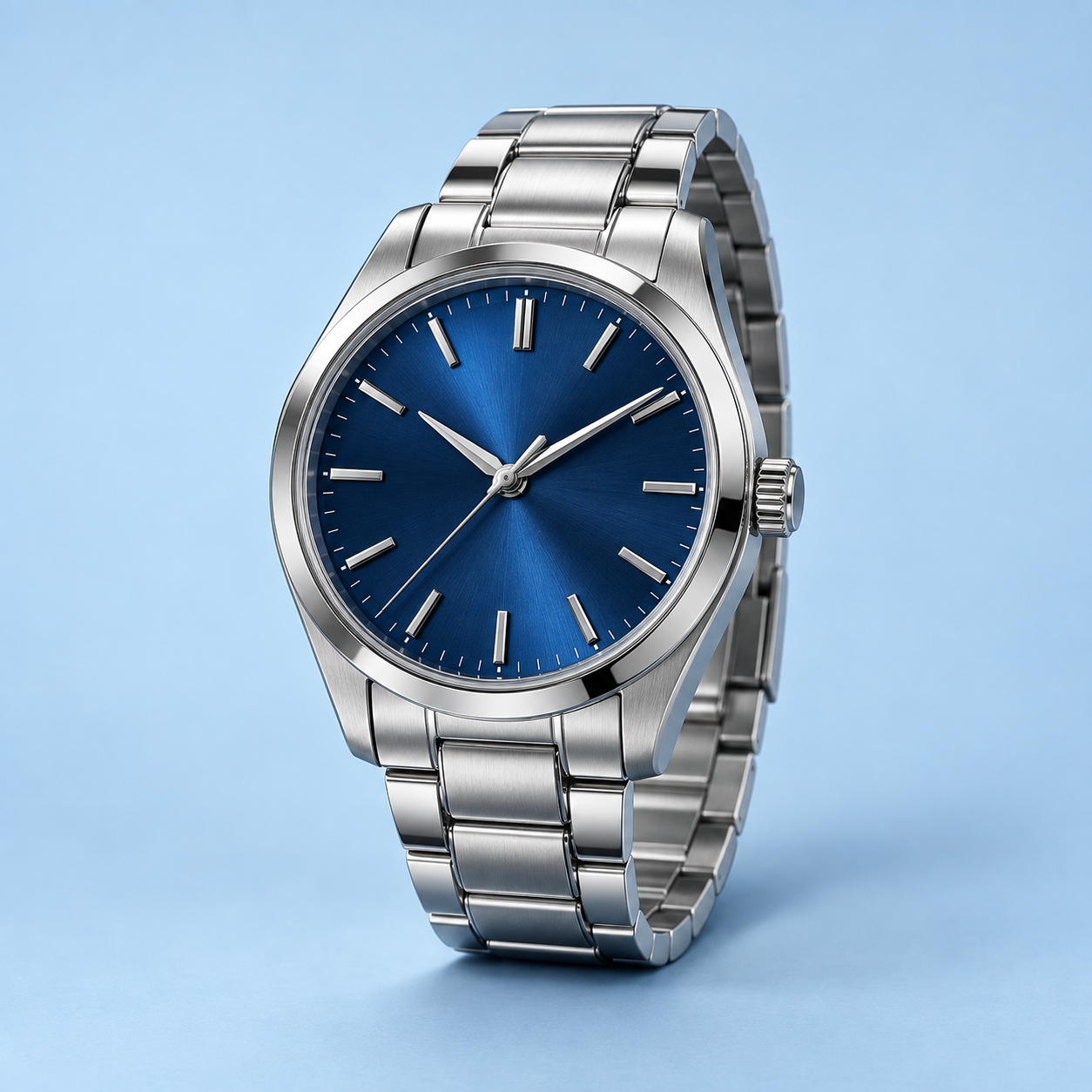 OriginalRemoved

 OriginalRemoved
MORE THAN A BACKGROUND REMOVER
Turn one ordinary image into polished product photography, profile pictures, campaign graphics, and content that feels ready to publish.
EraseBG keeps the process focused: bring the image, refine the scene, and leave with something you can actually use.
BUILT AROUND REAL WORK
From a quick listing to a full campaign, the best tool is the one that gets out of your way.
Create consistent storefront images, marketplace listings, and launch graphics without booking another shoot.
Turn portraits into profile photos, team pages, invitations, and social posts while keeping the subject natural.
Keep a transparent master, try new scenes, and export the right version for every channel.
FROM A PHOTO TO ANYWHERE
Remove the background once, then take your image anywhere.

Start with any photo

Background removed.
Subject stays.

Add any background
you like

Create ads, posts,
products and more
GOOD TO KNOW
Everything you need before your first cutout.
Upload your photo, let EraseBG remove the background, then choose a new look and download your image.
Keep a transparent background, choose a color, or add your own backdrop. Undo and redo your edits, then download your composition as PNG or JPG.
Choose Transparent and download as PNG to preserve transparency. JPG requires a solid background; white is used if you export a transparent canvas as JPG.
Your images are processed locally in this browser, not uploaded to a server. The first use downloads the background-removal model.